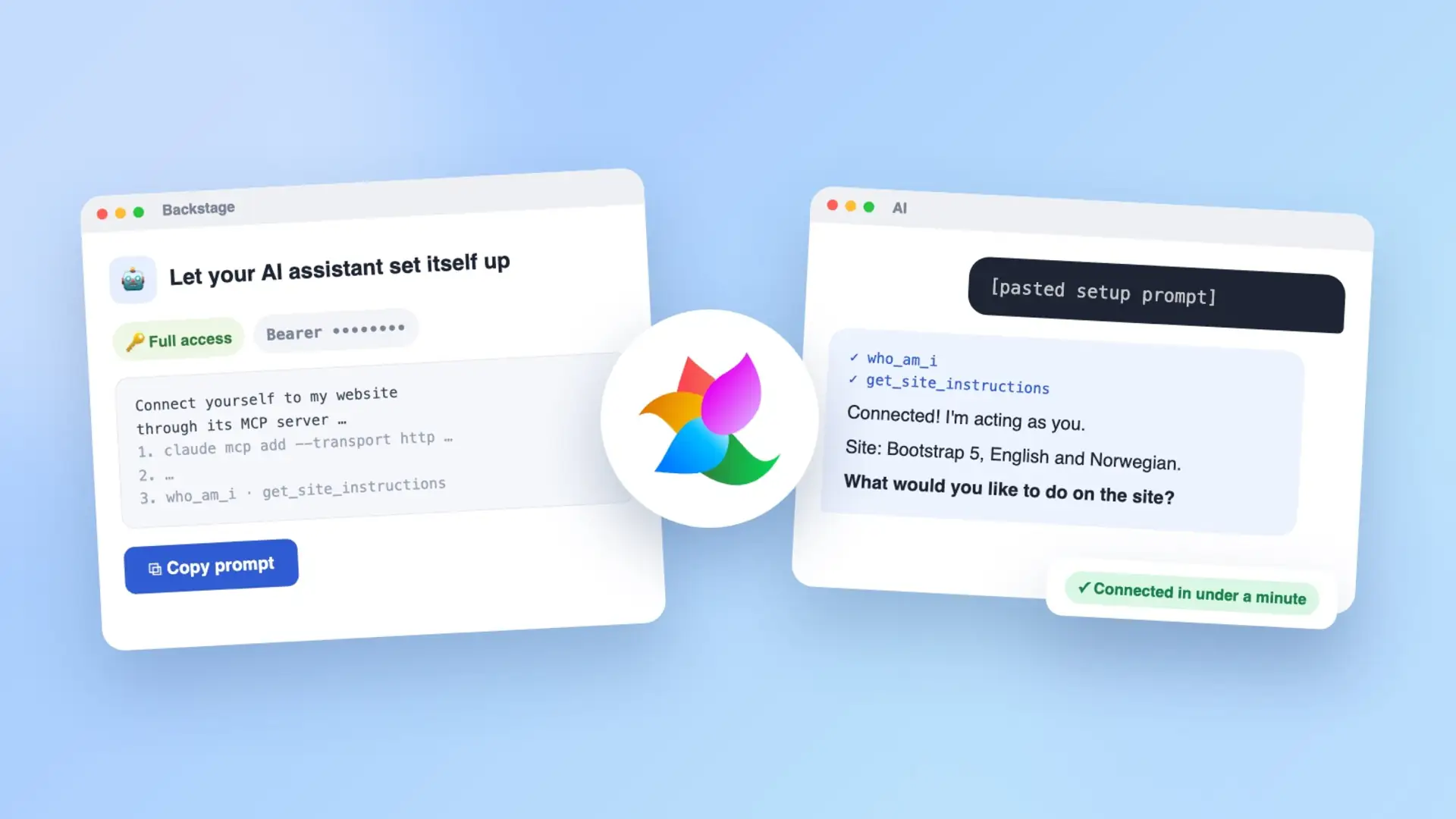
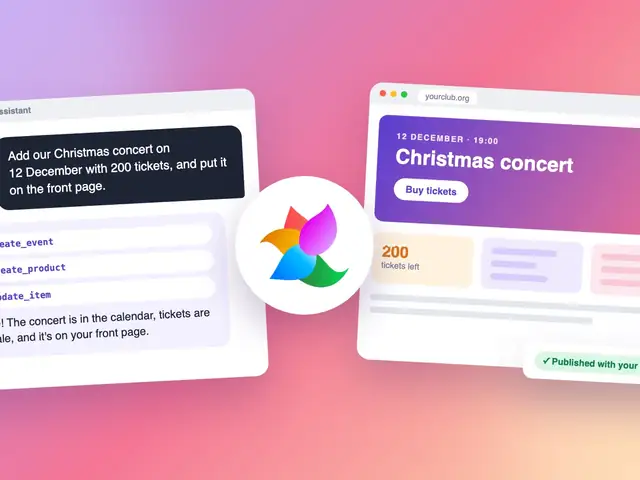
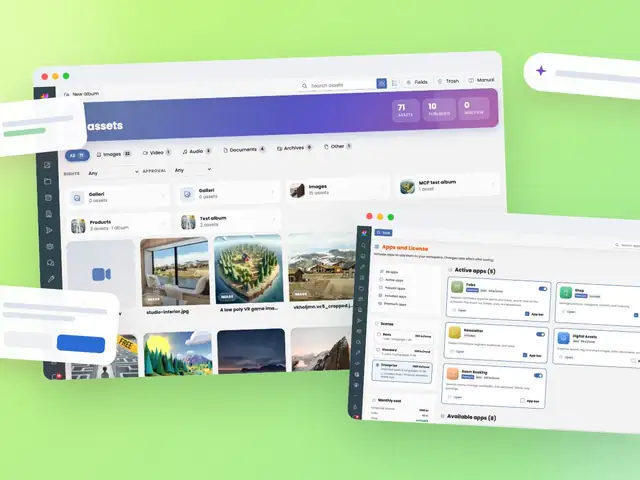
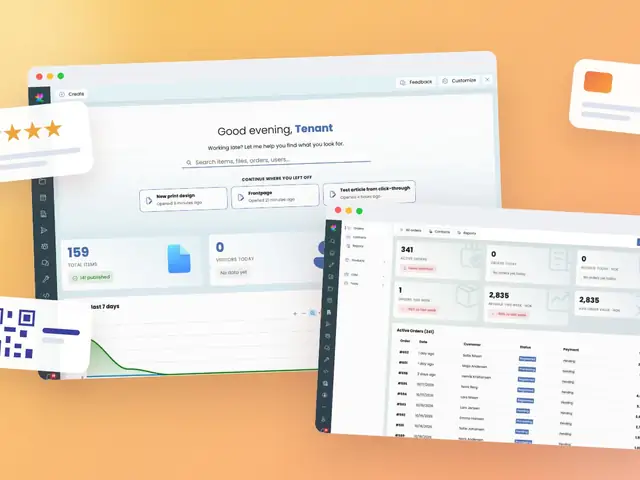
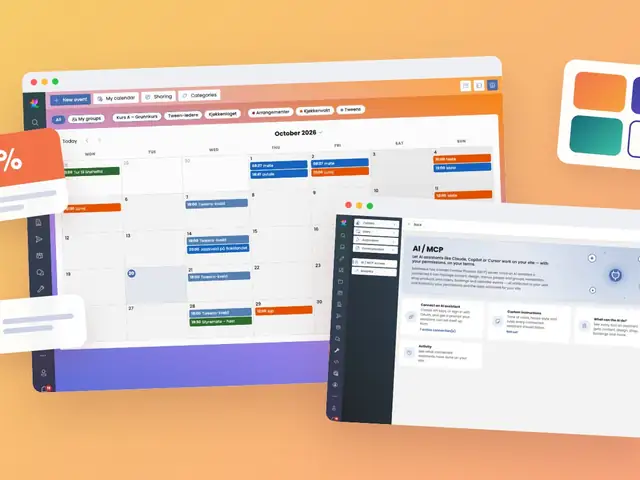
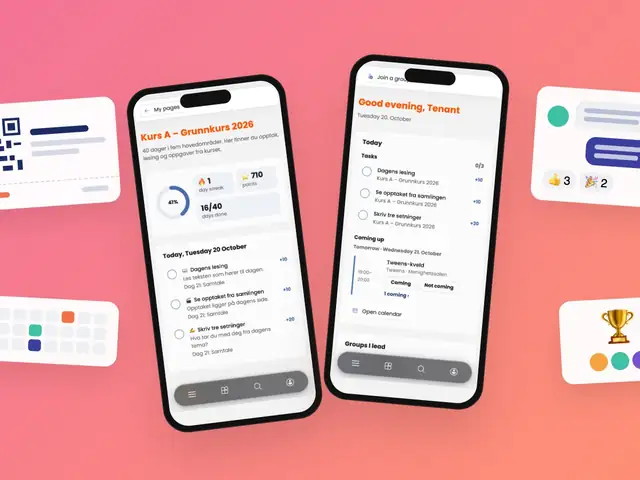
No long technical guide needed: copy a ready-made prompt from Backstage, paste it into your AI assistant, and it connects itself to your website. Or simply sign in with your account.
Let your assistant do the setup
You have read about the new eRedaktør MCP platform. Now it is time to connect. The good news: you don't need to follow a long technical guide. eRedaktør gives your assistant a ready-made prompt, and the assistant sets itself up.
Why not a step-by-step guide for every assistant? Because AI assistants change fast. New versions arrive every week, sometimes every day, and menus move around. So instead of screenshots that are out of date tomorrow, we built the setup into eRedaktør itself.
Option 1: Paste a prompt, and you're done
Best for assistants that can change their own settings, like Claude Code, Cursor and Copilot in VS Code and Visual Studio.
- Log in to Backstage and open Tools → AI / MCP access → Connect an AI assistant.
- Create an API key. Give it a name, like «Claude Code – laptop», choose Full access or Read-only, and pick when it should expire.
- Click Copy prompt. The prompt already contains your site's address and your new key.
- Paste it into your assistant and press enter.
The assistant adds eRedaktør to its own configuration, reconnects, checks who it is acting as, and reads your site's own instructions. Then it asks what you'd like to do. If it can't change its settings itself, it tells you exactly which setting to change and where.
The key is only shown once. If you lose it, just revoke it and create a new one.
Option 2: Sign in with your account
Best for chat apps like Claude, ChatGPT, Gemini and Grok Bot, where you add connections in the app's settings.
- On the same page in Backstage, under Sign in with your account (OAuth), copy the Server URL.
- In your assistant, find where you add connectors, apps, integrations or MCP servers. The name varies between assistants. Add a custom one and paste the URL. Leave any Client ID and Secret fields empty.
- Sign in to eRedaktør and approve access. No key needed.
Some assistants need a little setup first, like turning on a developer mode, and what is available can depend on your plan with them.
Good habits
- One key per assistant or device. Then you can revoke one without affecting the others.
- Read-only for reports. A read-only key can look at everything but change nothing, perfect for summaries and statistics.
- Set an expiry date for keys you only need for a while.
- Treat keys like passwords. A key acts as you. Never share it or save it in code.
- Stay in control. Every key and sign-in is listed in Backstage with when it was last used, and you can revoke it with one click.
Your first conversation
Connected? Try one of these to get started:
- «Who are you connected as, and what can you do on our site?»
- «Give me a summary of what has happened on the site this week.»
- «Write a draft news article about our next event, but don't publish it yet.»
- «Which events do we have coming up this month?»
Need a hand?
Stuck, or not sure which option fits your assistant? Get in touch with us, and we'll help you get connected.